Using SNGREP
Main Screen
Idx: Line number column.
Method: Type of SIP message column.
SIP From: SIP message From column.
SIP To: SIP message To column.
Msgs: Numerical amount of messages column.
Source: Source IP and port number column.
Destination: Destination IP and port number column.
Call State: Call identifier column.
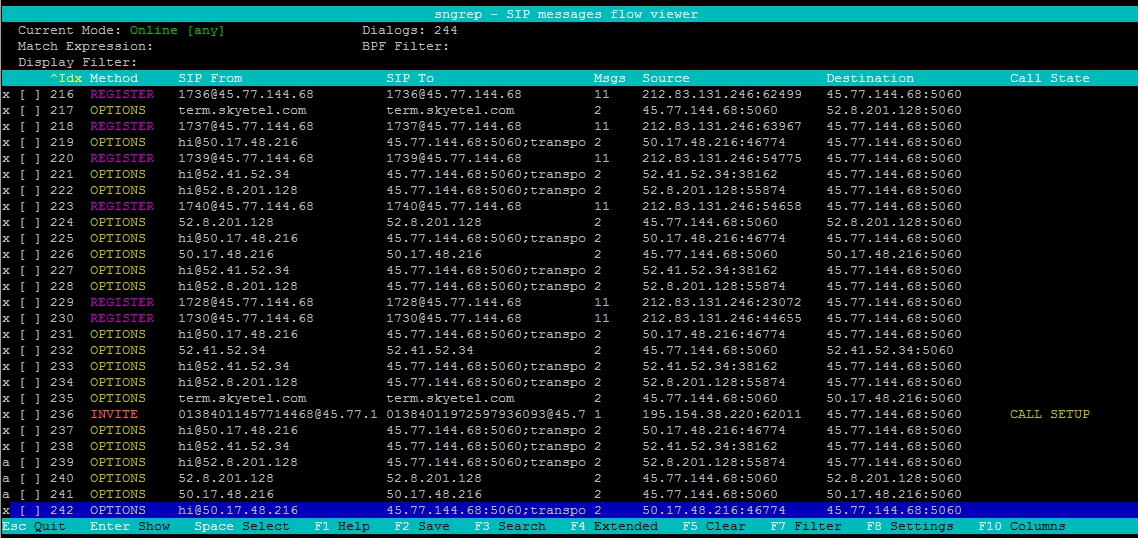
ESC Quit: escape and quit sngrep.
Enter: Show more information about the highlighted line item.
Space: After pressing the spacebar, the line is selected. With this you can select multiple lines and can be used with the F2 save option.
F1 Help: Gives a help menu.
F2 Save: Option to save the current capture session dialogs to a .pcap or .txt to a specific path and file name.
F3 Search: Gives the option to search in a more specific and granular way.
F4 Extended: Gives an extended view.
F5 Clear: Clear the screen.
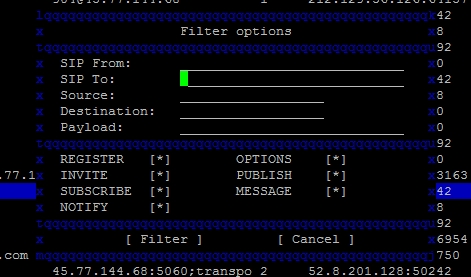
F7 Filter: Like search but with more options to filter the end result.
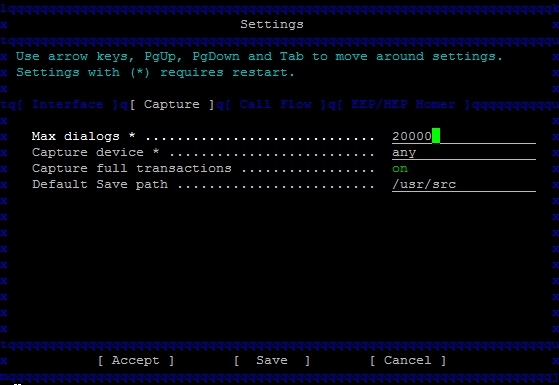
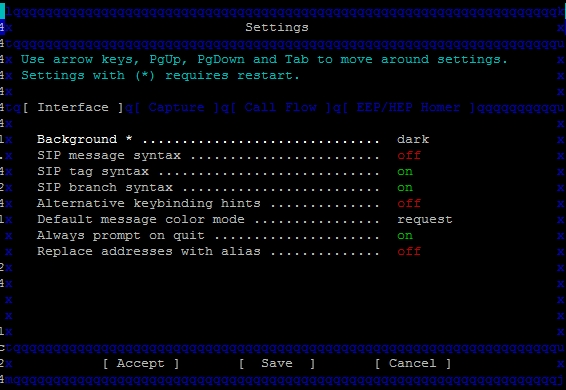
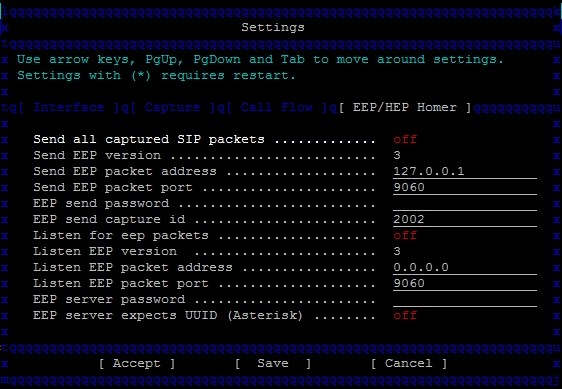
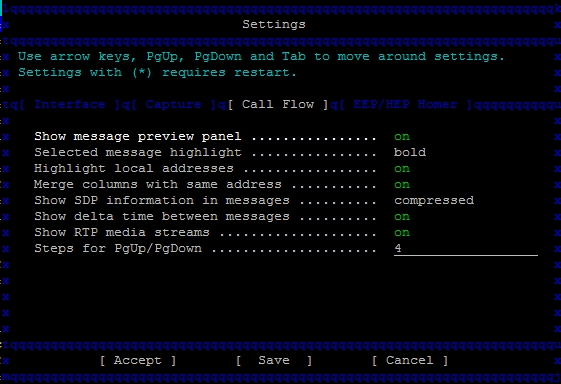
F8 Settings: Adjust SNGREP settings interface, capture options, call flow options, and EEP/HEP Homer options.
F10: Adjust what columns are displayed on the open sngrep window.
SPAM
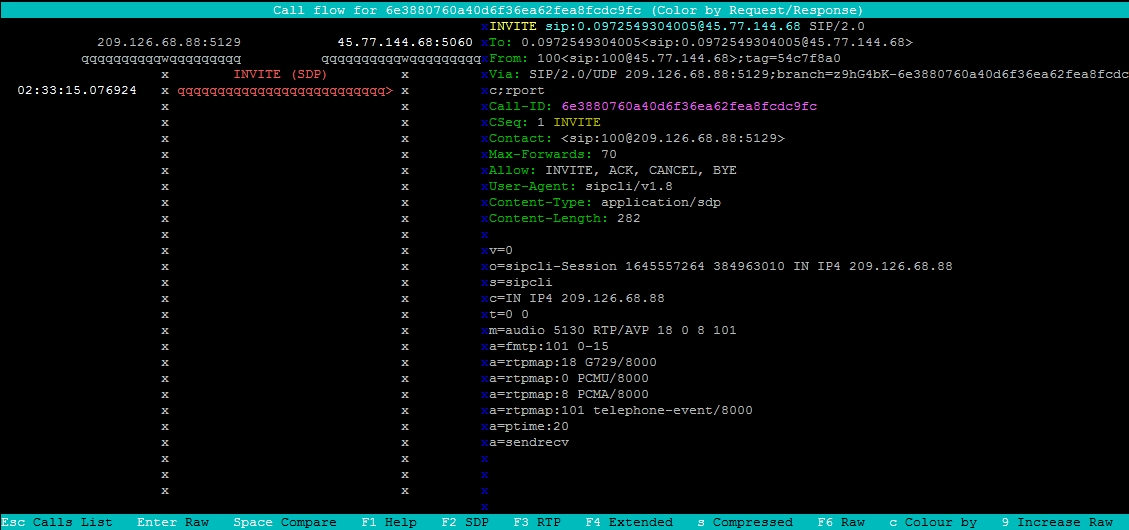
User-Agent: Most spam attempts will show an unwanted User-Agent like what is shown in this example.
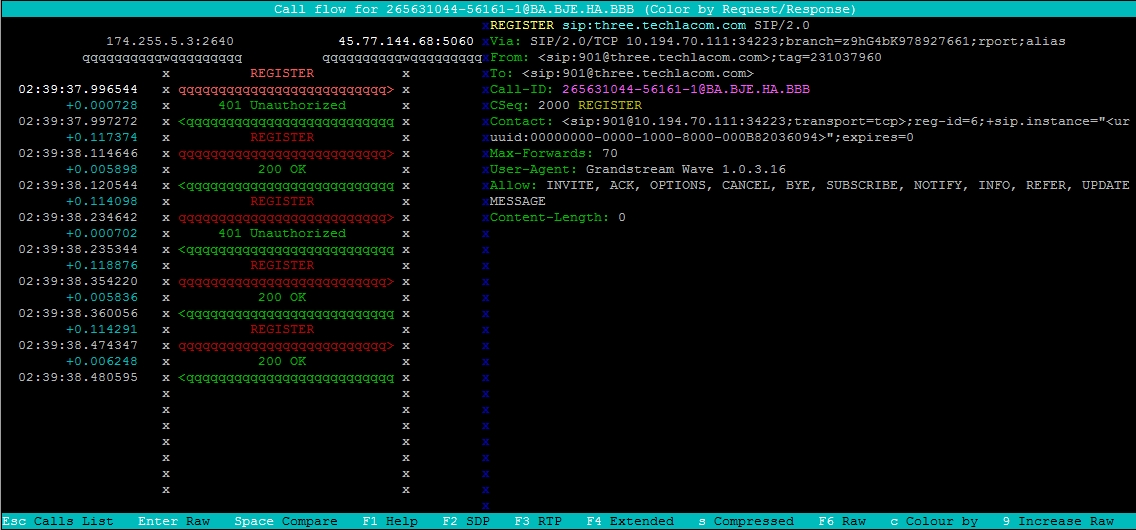
Registration


Registration Expanded
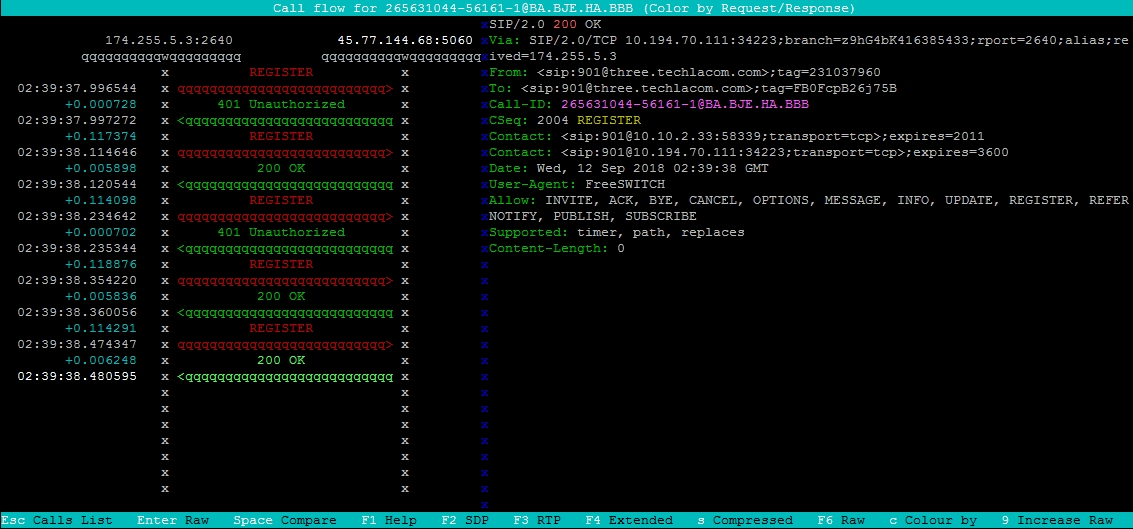
Call Setup

Invite
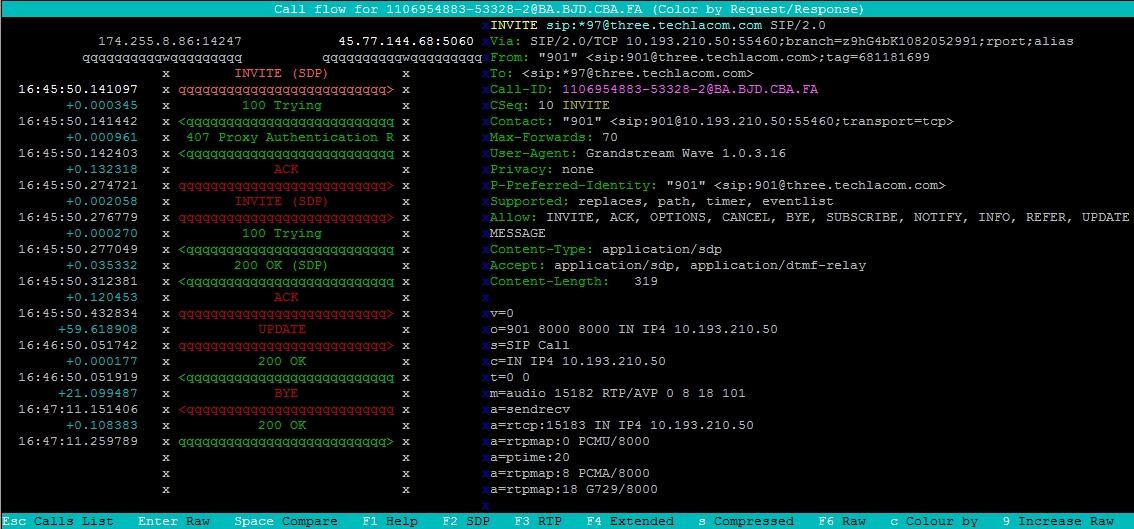
200 OK
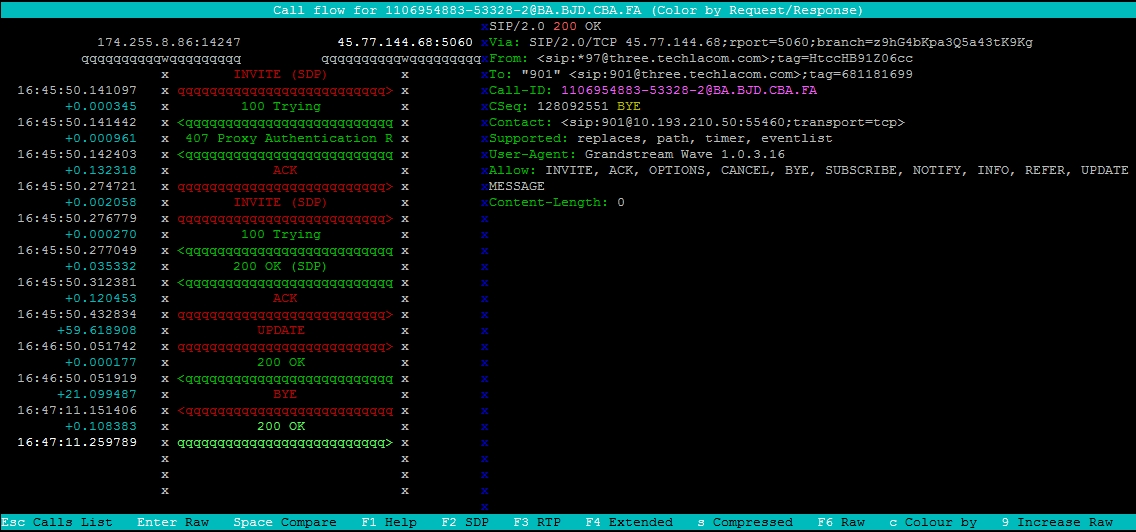
Call Completed

F3 Search

F7 Filter
F8 Settings
Interface
EEP/HEP HOMER
Call Flow
Capture