Dashboard
Access information and tools related to your account. Depending on the user permissions, the user may see fewer options on this screen.
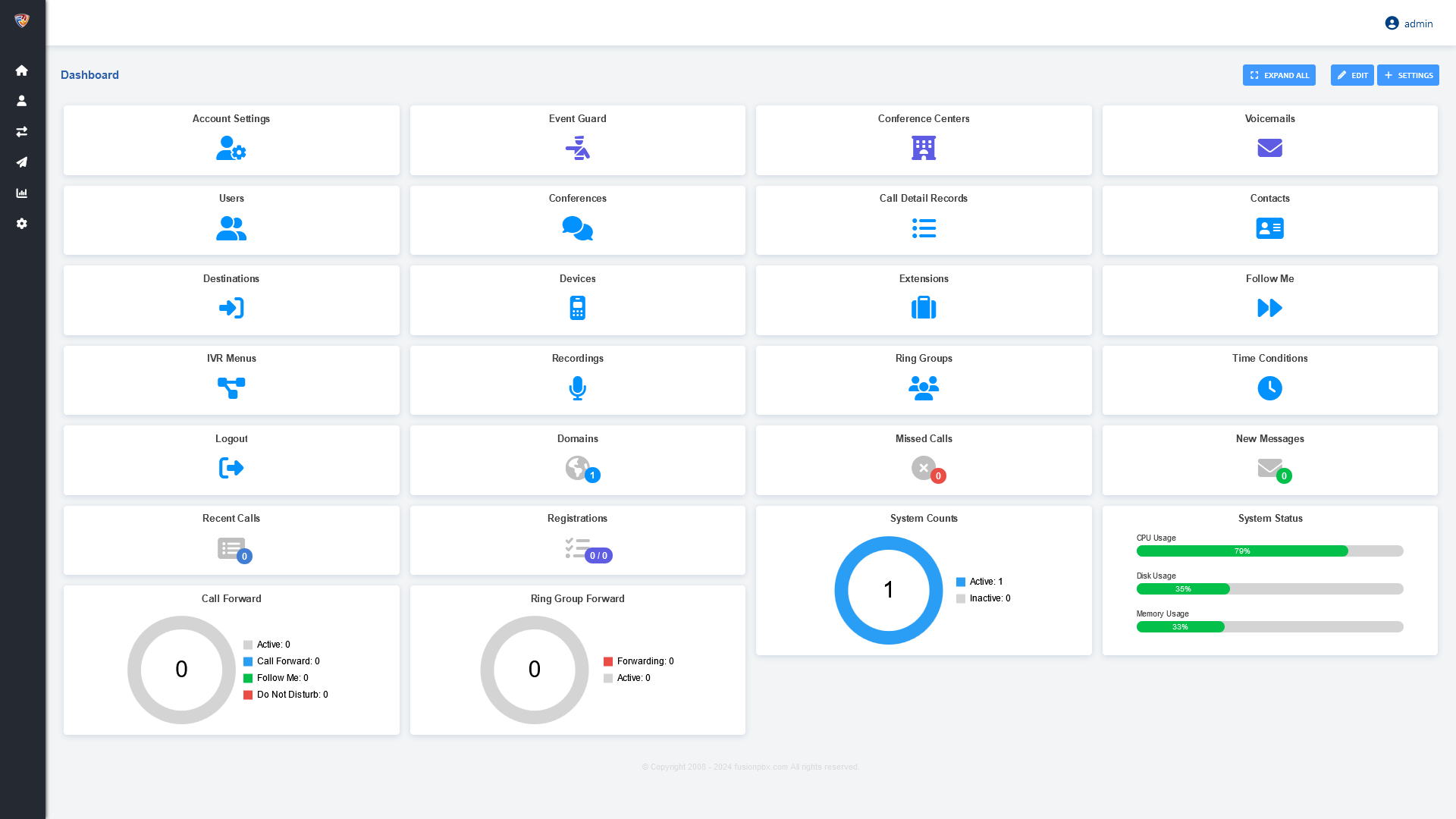
Voicemail: New and total voicemails related to the user’s voicemail box. A user can be assigned to more than 1 voicemail box.
Missed Calls: Missed calls for the user.
Recent Calls: Number of calls in the last 24 hours.
System Status: Disk usage in percentage, FusionPBX version, FreeSWITCH version, FreeSWITCH uptime, OS Uptime, CPU Usage, DB Connections, Channels, and Registrations.
Call Routing: See if call forward, follow me, do not disturb is set and a quick way to edit those options if needed.
Ring Group Forward: See the name, extension number, if forwarding is enabled, and what number it is forwarded to.
System Counts: Number of Domains, Devices, Extensions, Gateways, Users, Destinations, CC Queues, IVR Menus, Ring Groups, Voicemail, and if they are disabled.
Dashboard Default Settings
How to Move the FusionPBX v5.3 Menu Bar to the Top
Overview
The new version of FusionPBX has the menu bar on the left side of the screen by default. I prefer it at the top, so here are the steps I used to make that change:
Step-by-step
Log in to the FusionPBX Admin Interface
Access the FusionPBX administrative interface.
Go to Advanced > Default Settings
Navigate to Advanced > Default Settings.
Search for “Theme”
In the filter at the top, search for “Theme.”
Change Menu Style to Fixed
Find the Menu_Style setting and change it to Fixed.
Save and Reload
Save your changes and click Reload at the top of the Default Settings screen.
Refresh the Interface
Refresh your FusionPBX interface, and the menu bar should now be at the top.