Domains
Welcome to the adding a domain section. Here you will find how to add a domain so that you can reach the specific tenant from the multi-tenant domain side menu to configure and allow secure administration from the world wide web. Click here for the youtube video
Adding a domain
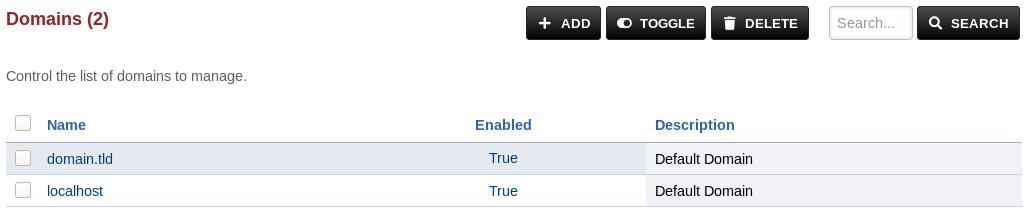
Control the list of domains to manage.
There are several reasons to create a domain (tenant). One reason would be to organize customers and so customers have a unique login ie superadmin@domain.tld or superadmin@subdomain.domain.tld as the username.
In this example we will create a domain.
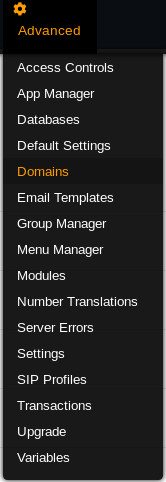
Navigate to Advanced then click Domains.
Then click the

on the right.
This will bring you to enter domain info. (Be sure to create an “A record” from your domain hosting account)
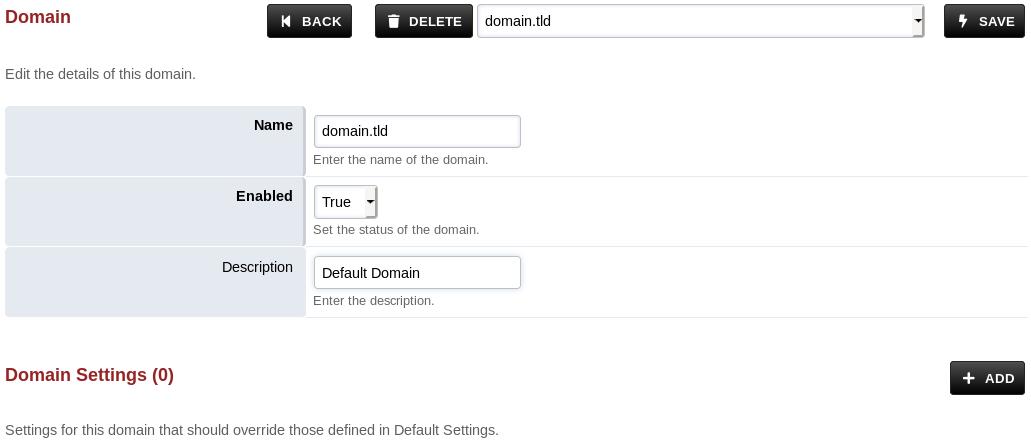
Click save once entry is complete.
Domain Selection
Changing to a different domain click the stack of three dashes on the top right
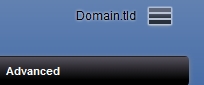
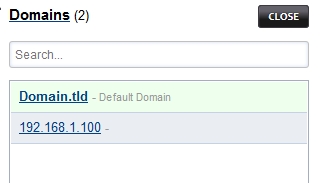
A menu will pop open on the right of the screen. Click on the domain that you want to manage. You will always see the domain you are in by looking at the top right beside the three stacked dashes.
Domains Default Settings
Override a Default Setting for one domain
Navigate to Advanced then click Domains.
Click on the domain:
Press “+ ADD” in the lower right corner:
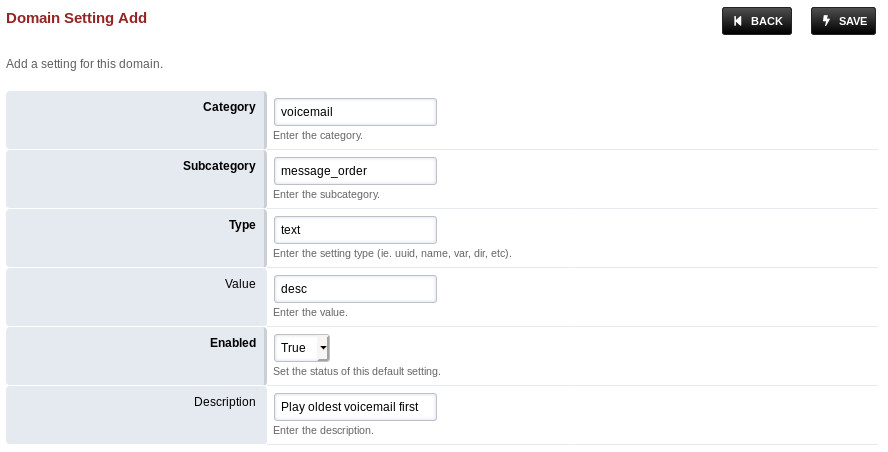
Enter the setting that should be overridden for this domain, then press Save.