Upgrade
If you are looking to upgrade your current version of FusionPBX to the next release version click here.
The FusionPBX code is constantly evolving.
Bug fixes being submitted
Additions to improve security
Making FusionPBX look nicer
More flexible
More scalable
New features
A complete summary of the changes can be found on the github code page https://github.com/fusionpbx/fusionpbx/commits/master.
Go to the menu then click on Advanced and then Upgrade. This tool allows you to update the source code, update the database structure, restore the default menu and permissions. Click here for the Youtube video.
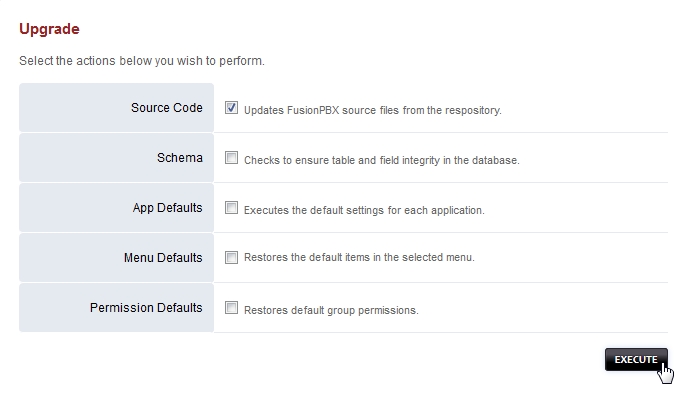
Update the source from command line
cd /var/www/fusionpbx
git pull
chown -R www-data:www-data
Back to the GUI
*Upgrade Database with advanced -> upgrade schema
*Update permissions
*Update the menu
*Logout and back in
How to Upgrade

To upgrade you will need to get the latest source code. Depending on how extreme the changes have been or the version you currently are on since your last update, you may need to follow version specific upgrade instructions to bring your install up to date.
Step 1: Update FusionPBX Source
GUI -> Advanced -> Upgrade (doesn’t update all files)
Used to update FusionPBX to the latest release.
Upgrade the code via Github/GIT
Login into the web interface with a user account assigned to the superadmin group. Login to the console with either the ssh, the locally. Backup It’s a good idea to make a backup. If using sqlite, your backup will easily include the SQL database.
    mkdir /etc/fusionpbx
    mv /var/www/fusionpbx/resources/config.php /etc/fusionpbx
    mv /usr/local/freeswitch/scripts/resources/config.lua /etc/fusionpbx
    cd /var/www
    cp -R fusionpbx fusionpbx_backup
    # Change the directory to the FusionPBX directory
    cd /var/www/fusionpbx
Update the source code (example assumes fusionpbx is in /var/www/fusionpbx)
    cd /var/www/fusionpbx
    git pull
Permissions Reset the permissions on the fusionpbx directory tree. When you do git pull it sets the permissions on any updated files to match the account that you are running git pull with. If that account is different to the web server account it will result in some files no longer being accessible and a red bar error at the top of the upgrade screen on the GUI. To fix this you should reapply the permissions in fusionpbx and recursively in all directories inside it.
The example assumes the web server runs as user ‘www-data’ and fusionpbx is installed to /var/www/fusionpbx. (chown -Rv Ownername:GroupName /var/www/fusionpbx)
    cd /var/www/fusionpbx
    chown -R www-data:www-data *
Step 2: Update Freeswitch Scripts
Note: As of FusionPBX 3.8.3 (Stable Branch), the scripts should be automatically updated when updating the Source Code, using the Advanced > Upgrade page. Any customized scripts, having the same name as the default scripts, will be overwritten. (An option to disable this default behavior is available using Default Setting: switch > scripts_update > false) Missing scripts will be restored, and any additional files within the scripts folder will remain untouched.
FusionPBX is a fast moving project where features are constantly being added and bugs are being fixed on a daily basis so I would also suggest upgrading the Freeswitch scripts directory as part of any normal upgrade process.
Update Freeswitch
Use github to get the updated files. You have to do this from an empty directory.
Note: Older versions of FusionPBX may use the /usr/local path instead of /usr/share
cp -R /usr/share/freeswitch/scripts /usr/share/freeswitch/scripts-bak
rm -Rf /usr/share/freeswitch/scripts/
cd /usr/src
git clone https://github.com/fusionpbx/fusionpbx.git
cp -R /usr/src/fusionpbx/app/switch/resources/scripts/ /usr/share/freeswitch
chown -R www-data:www-data /usr/share/freeswitch/scripts

# (The last step above is not required if your config.lua file is being stored in a different location, such as the /etc/fusionpbx folder.)
cp -R /usr/share/freeswitch/scripts-bak/resources/functions/config.lua /usr/share/freeswitch/scripts/resources/functions/config.lua
Clean out this scripts directory
An alternative is to remove the Lua scripts. Only do this if you haven’t customized any LUA scripts
    cp -R /usr/share/freeswitch/scripts /usr/local/freeswitch/scripts-bak
    rm -rf /usr/share/freeswitch/scripts/*
Pull the most recent scripts down
Here you need to go directly to step 3 and make sure you run upgrade schema from the GUI immediately otherwise your calls will not complete.
Restore the config.lua file (IMPORTANT!!)
If your config.lua file was located in scripts/resources/, then you’ll need to restore it (from the backup previously performed) to scripts/resources/config.lua.
Step 3: Upgrade Schema
Note: Many updates have changes to the database and to the Freeswitch scripts. The upgrade[schema]{#schema} script
Upgrade from the GUI
From the GUI, run Advanced -> Upgrade Schema which will add any needed newer tables or columns.
Then run App Defaults. If you removed the scripts on Step 2 then run this twice.
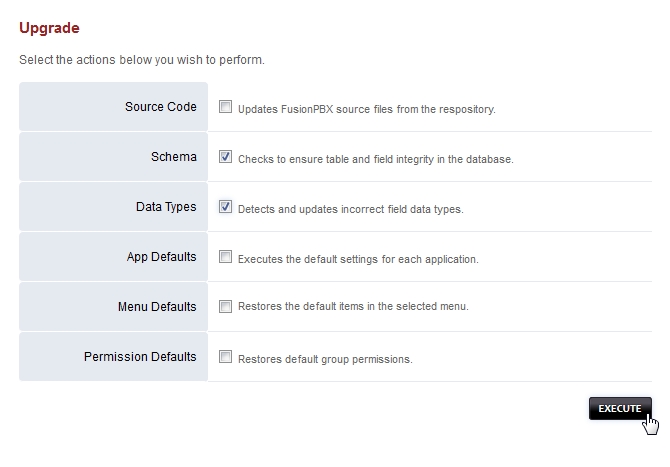
Upgrade from the Command Line
An alternative to running upgrade[schema.php]{#schema.php} from the GUI is to run the upgrade.php from the command line. It was designed to make the upgrade easier. If you did not login when updating the FusionPBX source code then you will need to run the upgrade.php file from the command line. Make sure to use the full path to the PHP file.
As root run the following
    cd /var/www/fusionpbx
    /usr/bin/php /var/www/fusionpbx/core/upgrade/upgrade.php
If your screen was nicely formatted with a fusionpbx theme, and suddenly now goes to a black and white screen with familiar text but no theme, it is because you were using a theme which no longer exists in the latest version of the code. If this happens to you navigate to:
http://domain_or_ip/mod/users/usersupdate.php
Then scroll down to where it says “Template” and select one of the valid templates from the drop down list. Then press Save. It will be fixed now and you can continue with the remaining steps below. (Note that any users who have invalid templates selected will also have the same problem you did. You can fix them from the user manager option in the accounts menu)
Step 4: Apply permissions and Restart Freeswitch
Make sure that the freeswitch directory has the correct permissions
chown -Rv www-data:www-data /usr/local/freeswitch/
Restart Freeswitch
systemctl restart freeswitch
Step 6: Re-generate Settings
Note: Sometimes variable names changes. In rev 1877 v_config_cli.php variable names changed which caused no fax to email emails or voicemail emails to be sent. Problem was the SMTP details did not exist.
Go to Advanced -> Settings and then click save. This will re-generate v_config_cli.php and any other needs config files.
Move to a different Branch
FusionPBX has a stable and a master(development) branch. You can switch from stable to master but not recomended to downgrade.
Move to the Stable Branch
    mv /var/www/fusionpbx /var/www/fusionpbx-old
    cd /var/www && git clone -b 4.4 https://github.com/fusionpbx/fusionpbx.git
    chown -R www-data:www-data /var/www/fusionpbx
Make sure config.php exists in /etc/fusionpbx If missing then move it into this directory.
cp /var/www/fusionpbx-master/resources/config.php /etc/fusionpbx
Move to the Master Branch
    mv /var/www/fusionpbx /var/www/fusionpbx-old
    cd /var/www && git clone https://github.com/fusionpbx/fusionpbx.git
    chown -R www-data:www-data /var/www/fusionpbx
Complete the normal upgrade process at Advanced -> Upgrade
If the menu disappears you have to upgrade schema then restore the default menu to get it back.