Music on Hold
Music on hold can be in WAV or MP3 format. To play an MP3 file you must have mod_shout enabled on the ‘Modules’ tab. You can adjust the volume of the MP3 audio from the ‘Settings’ tab. For best performance upload 16 bit, 8/16/32/48 kHz mono WAV files.
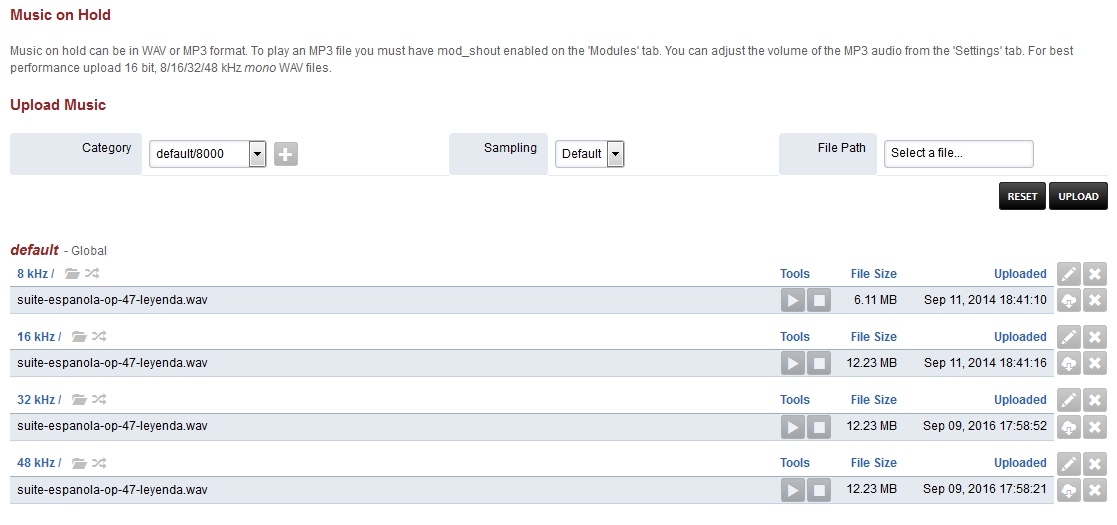
Click the edit pencil on the right to customize music on hold options. This can be done on each kHz group.
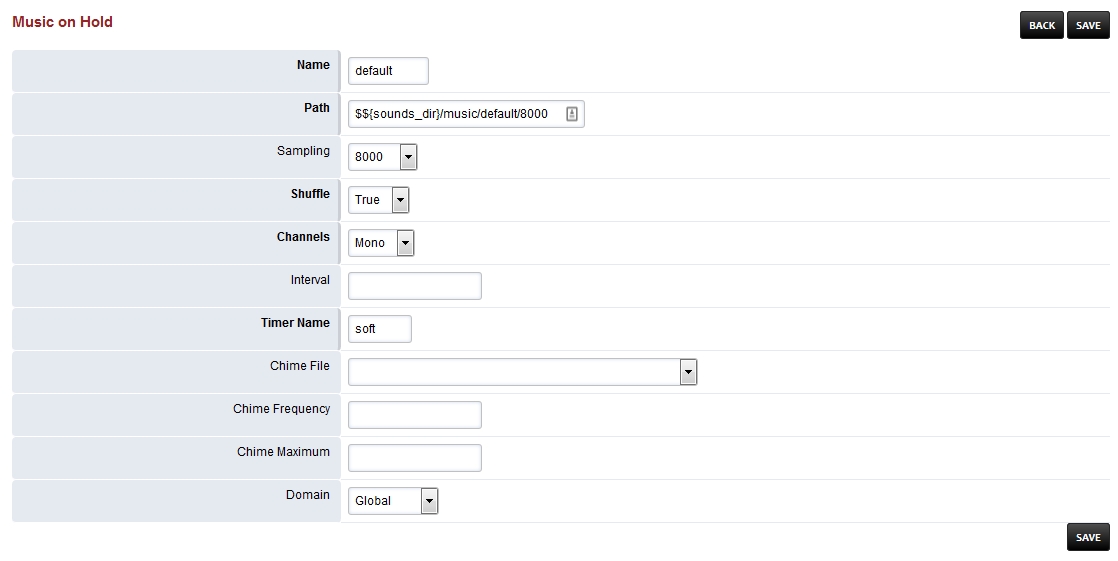
Name: Choose a name. (default is needed for the defauly Music on Hold.)
Path: Path to where the music is.
Shuffle: True or False (If true and multiple music files will shuffle the play order.)
Sampling: The rate the music is encoded in.
Channels: Mono or Stereo.
Interval: Silence between files playing in milliseconds.
Timer Name: Best to keep as soft.
Chime File: The file you want to “chime in” while Music on Hold is playing.
Chime Frequency: Seconds between each “chime in”.
Chime Maximum: Max number attempts to “chime in”.
Domain: Select Global for all domains or the specific domain for only that domain.
Music on Hold Tips
When a new music on hold category mod_local_stream will be restarted. If it is busy then it will not restart automatically. A manual restart of the module is required when it is not in use. The module can be restarted from the Menu -> Advanced -> Modules or from the console and fs_cli with following command.
reload mod_local_stream
Each music on hold category is given a name. If the domain is set to global the name will be the name in the example below the protocol that is used is local_stream and the music on hold category is default and domain is set to global.
local_stream://default
It is possible that a domain or tenant can have its own category of music. In this example the name is ‘custom’ and the domain was assigned automatically to the current domain.
local_stream://domain_name/custom
Setting Up Custom Music on Hold in FusionPBX 5.3
Step 1: Add Music on Hold Log in to the FusionPBX web interface.
Navigate to Applications > Music On Hold.
Click the Add button in the top-right corner of the screen.
If you want to upload a file to an existing category, select that category. Otherwise, click the +button to create a new MOH category.
Enter a name for the new category (if creating one).
Leave the dropdown set to “Default.”
Select a file to upload.
Click the Upload button. (Large files may take a moment to upload.)
Your new category and file will appear in the list.
Step 2: Reload the Music on Hold Module (for New Categories) If you created a new category, follow these steps:
SSH into your server and run the following commands:
fs_cli This command opens the FreeSwitch CLI
reload mod_local_stream This command reloads the new category
Press Ctrl+D to exit the CLI.
Type exit to close the SSH session.
Step 4: Verify Custom MOH
Test your custom MOH by calling the extension and placing it on hold.
You should hear your custom MOH playing.